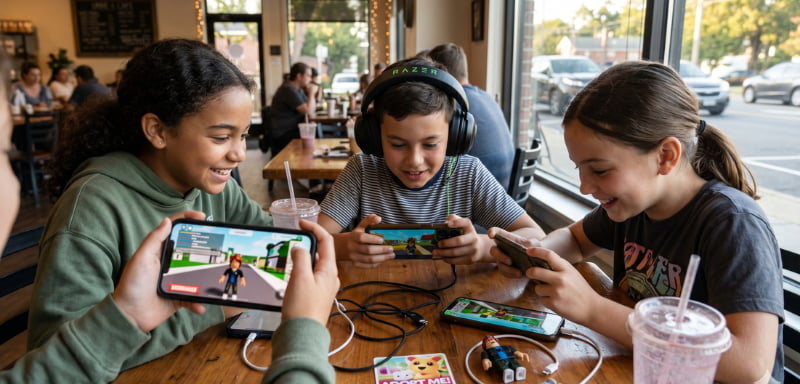
Roblox Parental Controls can help parents manage what children see, how long they play, who they interact with, and how much money they spend on the platform. With Robux purchases and in-game subscriptions available, setting clear spending rules can also help prevent unexpected charges.

Roblox currently allows parents to link their own account with their child’s account and manage several safety and spending settings from the parental controls dashboard.
What Are Roblox Parental Controls?
Roblox parental controls give parents and caregivers tools to manage a child’s experience. Depending on the child’s age and region, parents can manage settings related to content maturity, communication, screen time, spending, privacy, and allowed or blocked games.
To manage these settings, a parent needs a Roblox account with parent privileges linked to the child’s account.
How to Link a Parent Account to Roblox
Parents can link their account to a child’s Roblox account by going to the account’s Settings → Parental Controls → Add Parent and following the verification instructions.
Roblox may require the parent to verify that they are 18 or older using an available age-verification method. Once linked, the parent can manage eligible settings from their own account and device.
This is more convenient than sharing the child’s password because the parent can manage the account through their own linked account.
How to Set a Roblox Monthly Spending Limit
One of the most useful features for controlling Robux spending is the monthly spending limit.
To set it up:
- Log in using the parent account.
- Open Settings.
- Select Parental Controls.
- Open Settings You Manage.
- Select Spending Restrictions.
- Choose Monthly Spending Limit.
- Enter the desired amount.
- Select Update.
When the child reaches the monthly limit, further purchases are blocked for that month. Roblox says the monthly limit resets at the end of the calendar month and does not roll over.
Parents should remember that spending limits may not apply to certain console purchases, and gift-card redemptions are not affected by the monthly spending limit.
Turn On Robux Spending Notifications
Parents can also enable spending notifications to keep track of purchases.
Roblox currently offers options including:
- Notifications for all transactions
- High-spending alerts
- No spending notifications
Parents who choose all transactions can receive a notification for each spending transaction made on the child’s account. High-spending alerts can notify parents when spending reaches certain thresholds during a month.
For families concerned about unexpected Robux purchases, transaction notifications can provide an additional layer of oversight.
Tips for Safe Robux Spending
Parents can establish a simple spending routine instead of allowing unlimited purchases.
1. Set a Monthly Budget
Decide how much the child can spend on Robux each month and configure the Roblox spending limit accordingly.
2. Explain What Robux Purchases Mean
Children should understand that Robux are used for digital items and experiences and that purchases involve real money.
3. Review Purchases Regularly
Check spending activity periodically, especially if the child uses multiple devices.
4. Be Careful With Gift Cards
Gift-card redemption is not controlled by Roblox’s monthly spending limit, so parents should account for gift cards separately.
5. Avoid Sharing Payment Information
Children should not have unrestricted access to a parent’s credit card, debit card, or other payment credentials.
Other Roblox Parental Controls
Robux spending is only one part of online safety. Roblox also provides controls for content and screen time.
Parents can manage content maturity settings and, where available, allow or block specific games. Screen-time controls can also limit how long a child uses Roblox each day.
Parents can therefore combine:
Content Controls + Screen-Time Limits + Spending Limits + Communication Settings
to create a more controlled Roblox environment.
Roblox Age-Based Safety Changes
Roblox’s current system increasingly adjusts features according to age. Younger accounts have stronger restrictions around content and communication, while older children and teens gradually gain more control over their own settings.
For example, Roblox says that at age 13, children begin managing certain settings themselves, while parents can continue to access some parental controls and activity insights. Spending limits no longer apply at age 13, although linked parents can continue receiving spending notifications.
Because features can vary by age and region, parents should review the settings available for their child’s specific account.
Common Robux Safety Mistakes to Avoid
Parents and children should be especially careful with websites or messages offering free Robux.
Avoid:
- Entering Roblox passwords on unofficial websites
- Sharing account credentials
- Clicking suspicious Robux links
- Downloading unknown Roblox-related software
- Giving payment information to strangers
- Trusting promises of unlimited or free Robux
- Sharing verification codes
If an offer sounds too good to be true, it is better to avoid it.
What Parents Should Check Every Month
A simple monthly safety checklist can help:
✓ Review Robux purchases
✓ Check spending against the budget
✓ Review screen-time activity
✓ Check friends and connections
✓ Review content restrictions
✓ Check blocked or allowed games
✓ Discuss online safety with the child
Regular conversations are just as important as technical controls.
Final Words
Roblox Parental Controls and Safe Robux Spending can help families create healthier boundaries around gaming and digital purchases. Parents can link their own account, configure spending restrictions, enable transaction notifications, manage content settings, and review activity through Roblox’s parental-control tools.
The best approach is to combine technology with simple household rules: set a realistic Robux budget, review purchases, protect payment information, and teach children how to recognize scams and suspicious links.