Paying for Robux and not seeing the balance update can be worrying, especially when your credit card, debit card, PayPal account or mobile wallet already shows a charge. In many cases, the problem is caused by using the wrong Roblox account, a delayed payment authorization, an app synchronization error or unconverted gift-card credit.
Follow these troubleshooting steps before attempting another purchase or requesting a refund.
1. Confirm You Are Using the Correct Account
The most common issue is purchasing Robux while signed in to a different Roblox account. Check the username currently displayed and compare it with the account used during checkout.
If you use multiple accounts on the same mobile device, browser or gaming console, log out and sign back in to the account that completed the transaction. Robux cannot normally be transferred simply because it was purchased on the wrong account.
2. Check Your Robux Balance and Transaction History
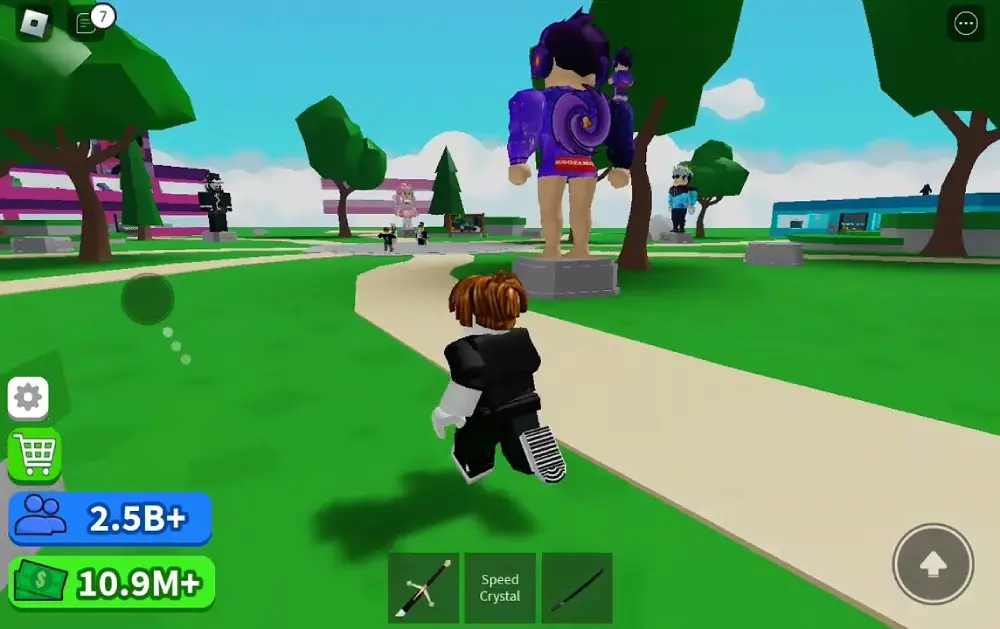
On the Roblox website, your balance appears near the Robux icon in the upper-right corner. Select the balance to open My Transactions.
Use the available filters to review:
- Currency purchases
- Avatar and game-pass purchases
- Subscription allowances
- Sales and pending earnings
- Group payouts
- Robux transfers
This will help determine whether the Robux was credited and then spent, whether the transaction is missing completely or whether the balance is being viewed on the wrong account. View the official balance instructions.
3. Refresh or Restart the Roblox App
Sometimes the purchase succeeds, but the app displays an outdated balance.
For Android, iPhone, Kindle or Windows applications:
- Log out of Roblox.
- Completely close the application.
- Reopen Roblox.
- Sign in again.
Xbox users should close and reopen the Roblox app without signing out. These steps allow the application to synchronize the latest account and payment information. Read Roblox’s purchase troubleshooting steps.
Android users can also open the same Robux package again without completing another purchase, then tap outside the confirmation window to cancel. Roblox says this may trigger the missing product to appear.
4. Review the Payment Status
Open your banking app, credit card statement, PayPal account, Google Play history or Apple purchase history. Determine whether the transaction is completed, declined or still pending.
A pending bank authorization does not always mean Roblox received the payment. A financial institution may temporarily hold money after a declined transaction. Small verification charges can also appear during payment-security checks.
Roblox states that certain declined or verification-related pending charges may be returned within 1–10 business days. Do not repeatedly attempt the same payment because multiple pending authorizations can temporarily reduce your available credit or prepaid-card balance. Review pending-charge guidance.
5. Check Whether You Received Roblox Credit
Redeeming a Roblox Gift Card may add Roblox Credit instead of immediately adding Robux. This credit is generally visible and usable through a web browser rather than the standard mobile app.
Visit Roblox.com/redeem, sign in and check the available credit. Select “Get Robux” to convert eligible credit into a Robux package. If the remaining balance is too small for a complete package, a “Convert Credit to Robux” option may be available.
6. Find and Save Your Purchase Receipt
A valid receipt is important when contacting billing support. Check the purchase history of the payment provider used during checkout, including:
- Apple App Store
- Google Play
- Amazon
- Microsoft or Xbox
- Samsung
- PayPal or Xsolla
- Credit or debit card statement
The receipt should show the order number, date, price and purchased product. Do not publicly share complete card information or account passwords.
7. Contact Roblox or the Payment Provider
If the payment is completed but the Robux still does not appear after restarting the app, contact Roblox Support. Include:
- Roblox username
- Purchase date
- Device used
- Robux package purchased
- Payment method
- Order or receipt number
- Xbox Gamertag, if applicable
For some app-store transactions, billing assistance or refunds must be handled directly by Apple, Microsoft, PlayStation, Amazon, Samsung or another payment provider.
What If the Charge Was Unauthorized?
If you notice an unrecognized Roblox payment, immediately secure the account and contact Roblox Support. Roblox recommends contacting support before opening a formal payment dispute because an existing dispute can affect the refund process. Read the official unauthorized-charge policy.
Final Advice
First verify the account, transaction history and payment status. Restart the app, check for unused Roblox Credit and keep the receipt. Avoid repeating the purchase while a charge remains pending. If the payment is completed and the balance is still missing, submit the transaction details to the correct billing-support provider.